Activate your license
At the end of this page the dashboard is open and Settings shows who the license belongs to.
You were given a key that looks like GHST-XXXXX-XXXXX-XXXXX-XXXXX. One key works on one PC at a time.
Steps
- Paste the key into the box on the key card. Spaces and lowercase don't matter.
- Click Activate. The card checks the key with the license server and the dashboard opens. From now on the app opens straight to the dashboard.
- Look at Settings → License (the gear icon in the left bar) to confirm.
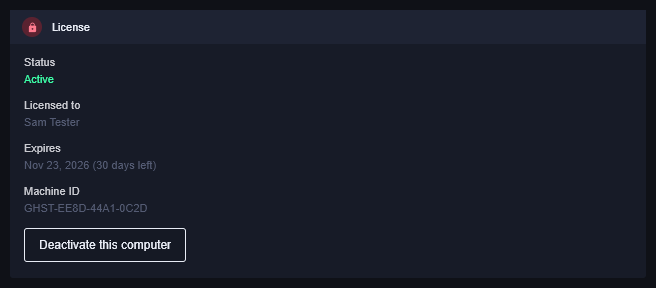
Moving to another PC
A key holds one seat. To use it on a different computer:
- On the old PC: Settings → License → Deactivate this computer. The key card comes back.
- On the new PC: install the app and paste the same key.
If the old PC is gone (died, wiped), ask in the Discord with your key and the seat will be freed for you.
When the card comes back
The app checks the license when it starts and every few hours. If the key stops being valid, every running task stops and the key card returns with a reason:
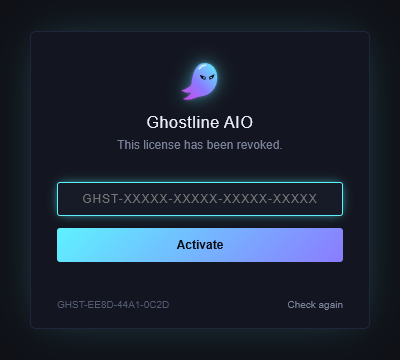
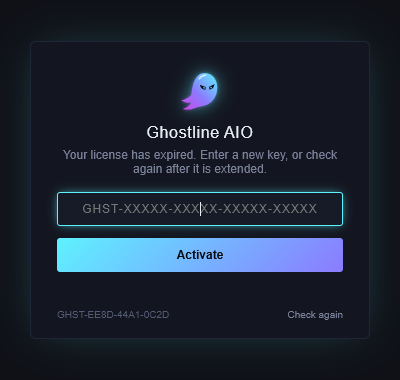
- "This license belongs to another computer": the key was activated elsewhere after this PC. Deactivate there first, or ask to have the seat freed.
- "This computer was removed from the license": the seat was freed on purpose. Paste the key again to take it back.
If the server can't be reached
The app keeps working for up to 72 hours from its last successful check, and Settings → License shows Active (offline). It retries on its own every few minutes. If 72 hours pass without a connection, the key card returns; Check again brings the dashboard back as soon as the server answers.
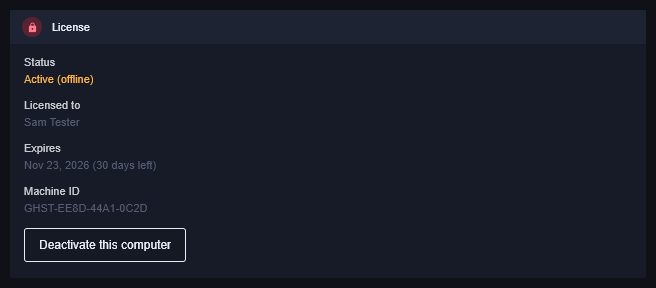
If it didn't work
- "That key isn't valid": check for a missing character; keys are five groups of five.
- "This key is already in use on another computer": deactivate it there, or ask in the Discord.
- "Can't reach the license server": check your internet connection and any firewall or VPN, then click Activate again.
- Still stuck? Open a ticket on Discord with your Machine ID from the key card.