Harvesters (Target)
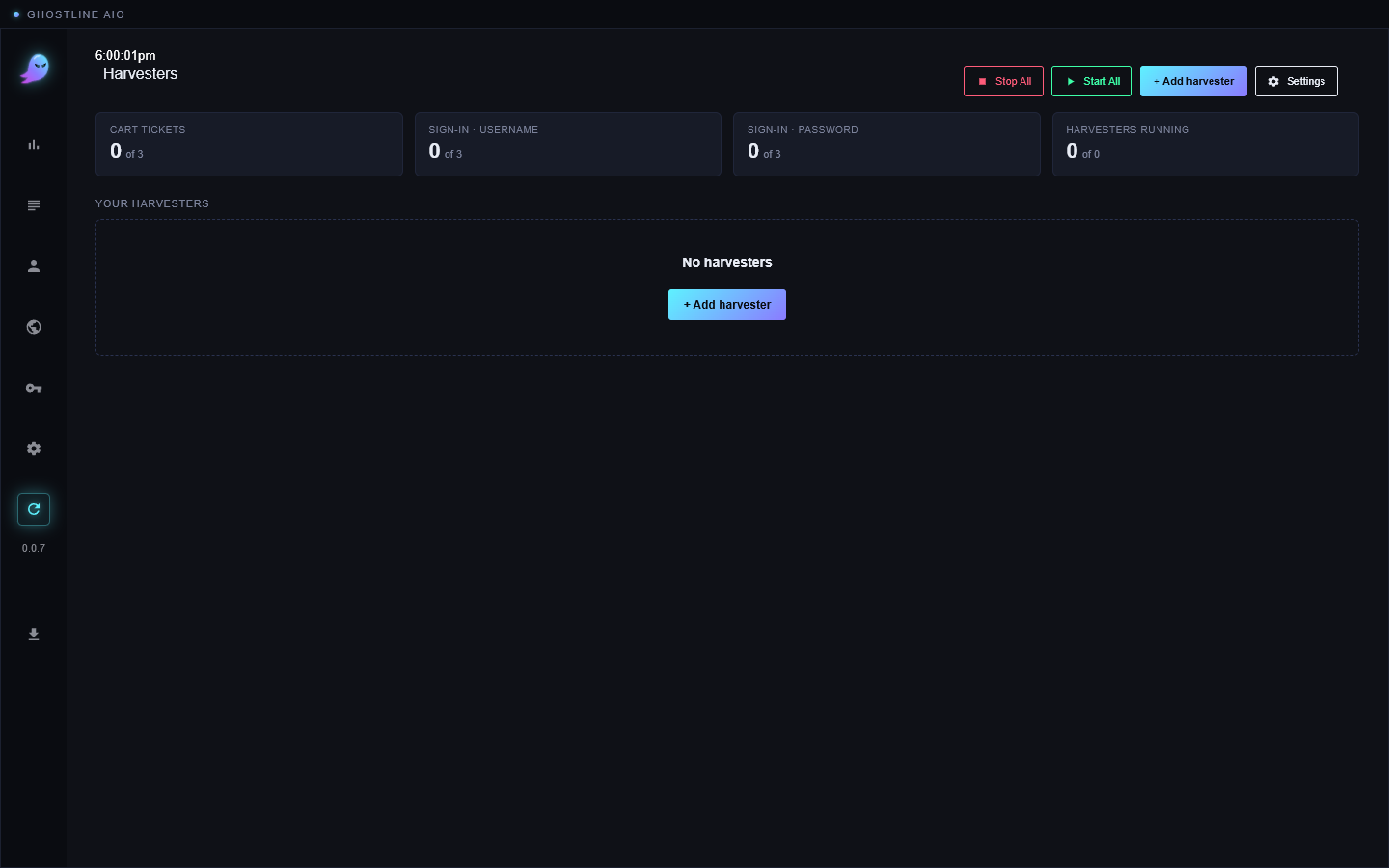
At the end of this page you know what the Harvesters view is for and when to use it. Only Target tasks use it; skip this page for other stores.
Target checks each sign-in and each add-to-cart with a security token that only a real browser session can earn. A harvester is a hidden Chrome window that earns those tokens ahead of time and keeps them in a bank, so your Target tasks don't stop to earn their own at the worst moment.
When you need one
- You have Target tasks on proxies. Tasks on your home connection usually earn their own tokens fine.
- A Target task keeps showing Sign-In Failed or Blocked before it reaches the cart.
If neither is true, you can leave this view alone.
Add and start one
- Click the refresh icon in the left bar to open Harvesters.
- Click + Add harvester.
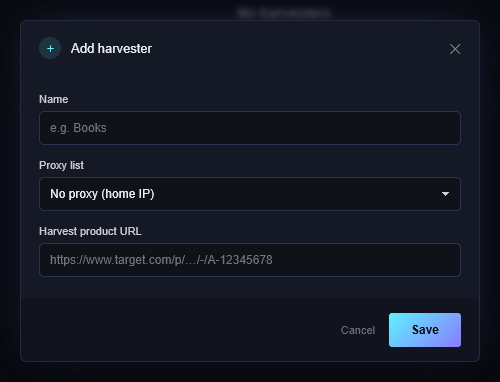
- Name it anything. Pick the Proxy list your Target tasks use (or no proxy).
- Harvest product URL: a Target product that is always in stock and cheap, like a book. The harvester adds it to a throwaway cart to earn tokens. Never put the drop product here.
- Save, then Start All. Harvesters only run when you start them; the app never starts one on its own.
The counters at the top climb. Each Target task can hold three cart tickets, so with two Target tasks you'll see "of 6".
Good to know
- Stop them with Stop All when the drop is over. They use a Chrome window each.
- The tokens are short-lived. Start harvesters shortly before the drop, not the night before.
- A harvester that meets Target's press-and-hold check waits for you: its window comes to the front, and you hold the button yourself.
If it didn't work
- Counters stay at 0: the harvest product is out of stock, or the proxy is blocked. Try a different product link, then a different list.
- A harvester row says Blocked: that proxy is burned for now. Stop it and use another line.
- Still stuck? Open a ticket on Discord.