Proxies
At the end of this page you have a proxy list a task can run on, or you've decided to run without one.
A proxy gives a task its own internet address. You don't need one to use the app: a task with No proxies runs on your home connection. Proxies matter when you run several tasks at once on the same store, or when a store keeps blocking your home address.
Add a list
- Click the globe icon in the left bar to open Proxies.
- Paste your proxies into the big box, one per line, in the format your provider gave you:
host:port:user:pass(or justhost:portwith no login). - Type a Proxy List Name and click Save. Or click Import .txt to load a file your provider exported.
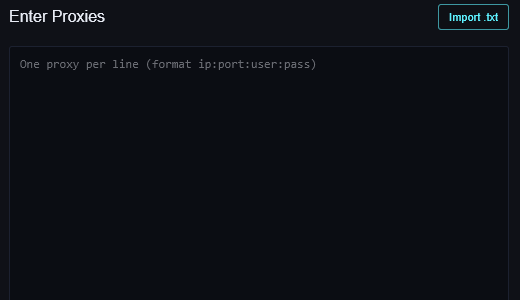
The list appears under Proxy Lists on the right with the number of lines you pasted.
Test them

- Connection only checks that each proxy answers.
- Target, Walmart or Pokemon Center also checks that the store answers through that proxy. (Best Buy isn't in the list.)
Remove lines that fail; a task that lands on a dead proxy stops.
How tasks use them
- In a task, choose the list under Proxies. Each task takes a line from the list.
- A proxy that fails is a stop, not a fallback. The task shows Proxy Error and never switches to your home address on its own, so your home address stays out of it.
- The restock monitor has its own proxy setting, see Task groups & monitor.
If it didn't work
- Everything fails Connection only: the format is wrong (most often
user:pass@host:portinstead ofhost:port:user:pass), or the proxies are bound to a different IP than this PC's. - Connection passes but the site fails: the store doesn't like those addresses. Try another list or none.
- Still stuck? Open a ticket on Discord.